WPML is one of the most powerful multilingual plugins for WordPress, especially since it introduced automatic AI translation through its Advanced Translation Editor. For many site owners, this is convenient.
But not everyone wants it.
You might want to:
• Control translations manually
• Avoid unexpected credit usage
• Use your own translators or workflows
• Connect WPML to external tools (like custom AI pipelines)
The problem is: WPML strongly pushes automatic translation during setup, and it’s not always obvious how to fully disable it.
This guide shows exactly how to turn off automatic AI translation in WPML completely and safely
Why WPML Keeps Enabling Automatic Translation
Before jumping into the steps, it helps to understand what’s happening.
WPML has three separate layers where automatic translation can be enabled:
- Translation Mode – global setting
- Translation Editor behavior – workflow setting
- Advanced Editor auto-translate toggle – per-editor setting
If you disable only one of them, AI translation may still trigger.
That’s why you must disable it in all three places.

Step 1 – Disable “Translate Everything Automatically”
This is the main switch.
Where to find it:
WPML → Translation DashboardWhat to do:
- Locate the Translate Everything Automatically section
- Turn off
This ensures WPML will not automatically send content to AI translation.
Step 2 – Stop Automatic Translation When Opening the Editor
Even after Step 1, WPML may still try to auto-translate when you open a translation job.
Go to:
WPML → SettingsWhat to do:
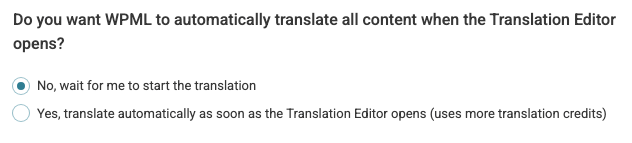
- Find this option: Do you want WPML to automatically translate all content when the Translation Editor opens?
- Set it to: No, wait for me to start the translation
- Save settings
This prevents WPML from sending content to AI the moment you open a page.
Step 3 – Disable Auto Translation Inside Advanced Translation Editor
This is the most overlooked step.
Even if you disable everything above, the Advanced Translation Editor (ATE) has its own auto-translate toggle.
How to disable it:
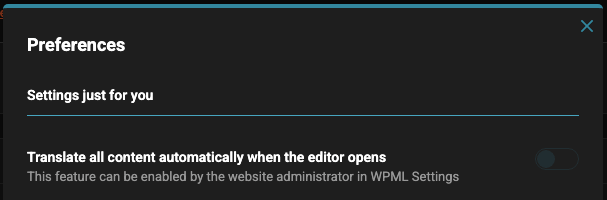
- Open any translation in the Advanced Translation Editor
- Click the ⚙ Settings icon (top-right corner)
- Turn OFF: Translate all content automatically when the editor is opened
Once disabled, WPML will stop auto-translating inside the editor.
Important: When to Apply These Steps
You should apply these settings:
- After completing the WPML Setup Wizard
- Before starting translation work
- Before connecting translation services
Otherwise, WPML may already start automatic jobs.
When You Might Still Want Automation
Many developers don’t want WPML’s built-in AI because:
- It consumes WPML credits quickly
- Limited control over prompts
- Cannot use custom models
- Hard to integrate into workflows
This leads to a common question:
Can you keep WPML manual but still automate translation cheaply?
Yes, and that brings us to the next section.
How to Translate WPML Almost for Free Using ChatGPT
If you want:
- Full control over AI translation
- Much lower cost than WPML credits (x1400)
- Ability to use GPT-5
- Custom prompts
You can use:
👉 LLM Automatic Translation Plugin
How It Works (Simple Flow)
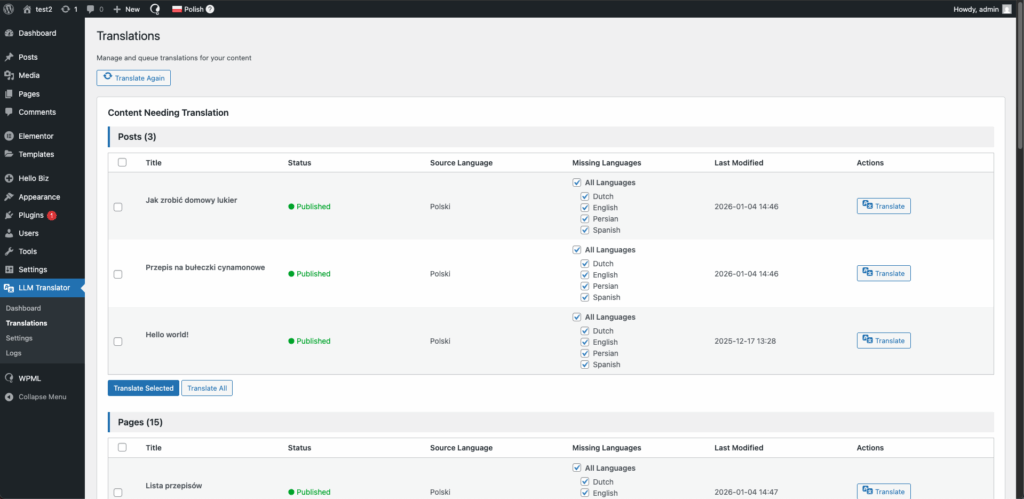
- Keep WPML in manual translation mode
- Select content to translate
- Send it through the plugin to ChatGPT
- Automatically fill WPML translation fields
You keep:
- WPML workflow
- WPML SEO compatibility
- Translation memory
But remove expensive automatic AI.