How to Translate a WooCommerce Checkout Page for Free in WordPress
Your checkout page can look “translated” at first glance and still lose sales in the last 30 seconds. A customer sees product pages in their language, adds to cart, clicks through—and then hits Place order, Billing details, error notices, or payment labels in English. If you’re searching for how to translate WooCommerce checkout page free, you’re probably not asking one simple question. You’re trying to fix the exact moment where trust breaks.
That’s why this gets confusing so fast: the WooCommerce checkout page is really a mix of different things. Some text belongs to the page content itself. Some comes from WooCommerce and other plugins as built-in interface strings. And sometimes what you actually need is a complete multilingual setup for the whole store—URLs, language switching, SEO, product content, checkout labels, everything working together instead of patched together. The “free” answer depends entirely on which of those problems you’re actually trying to solve.
Get that distinction right, and translating checkout stops feeling messy. Get it wrong, and you can spend hours editing the wrong screen while the untranslated text customers actually see stays exactly where it was.
What exactly needs translating on a WooCommerce checkout page?
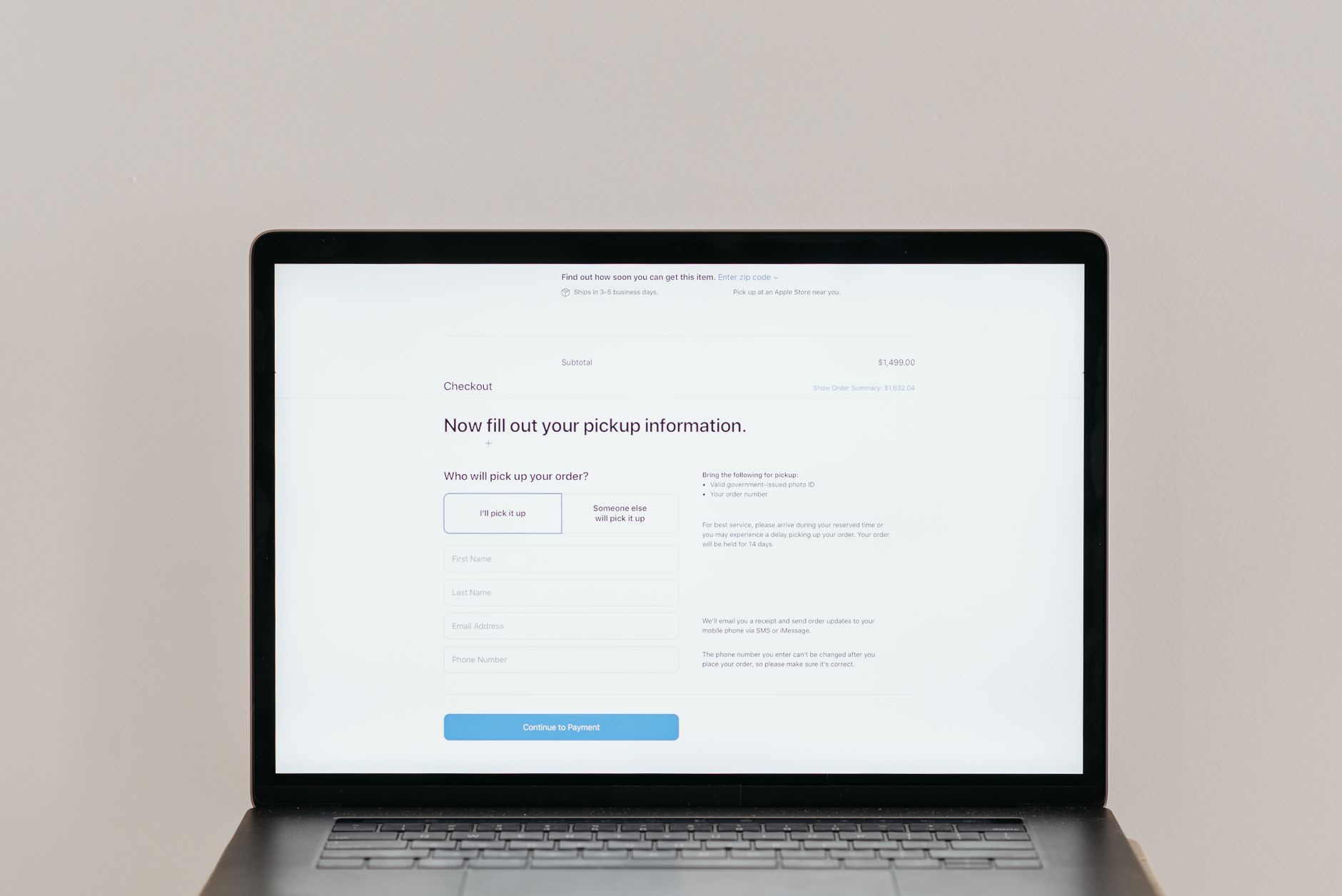
Here is the part many store owners miss: a WooCommerce checkout page is rarely just one thing. What looks like a single page is usually a mix of plugin-generated interface text, store-specific content, and site-wide multilingual setup. If you do not separate those layers first, you can waste hours editing the wrong place and still end up with half-translated checkout text.
That is why the real starting point for how to translate woocommerce checkout page free is not picking a tool. It is identifying what type of text you are dealing with.
Checkout fields, buttons, and notices are usually plugin strings
Most of the text customers see during checkout does not come from the page editor at all. Labels such as Billing details, Shipping address, Place order, coupon prompts, tax messages, validation errors, and payment instructions are typically generated by WooCommerce itself or by add-ons such as Stripe, PayPal, shipping plugins, or checkout-field extensions.
That matters because editing the Checkout page in Gutenberg or Elementor usually will not touch those strings. If your problem is “Place order is still in English,” you are not looking for a page-content translator. You are looking for gettext or interface-string translation.
In that case, the most direct free workflow usually starts with Loco Translate. If you want AI help on top of that workflow, LATW AI Translation for Loco Translate is the strongest option when you already use Loco Translate, because it is built specifically for theme and plugin strings and keeps placeholders and formatting intact. DeepL, Google Cloud Translation, and Microsoft Translator can also be used through Loco’s ecosystem, but they are alternatives within that same string-translation category, not replacements for understanding where the text comes from.
Custom text on the checkout page may live in the page builder or block editor
Not everything on checkout is a WooCommerce string. Many stores add their own heading above the form, a delivery promise banner, trust badges, refund notes, FAQ accordions, or a short “Need help?” message beside payment options. That content often lives in the block editor, a page builder template, or a theme template part.
So if your checkout contains both system labels and your own marketing copy, you may need two methods. One for plugin strings. Another for page content. This is where people get confused, because they translate the custom paragraph successfully but the field labels stay unchanged.
 LATW Multilingual” loading=”lazy” />
A translated checkout is not the same as a multilingual store
Translating a checkout page is a narrower task than building a multilingual WooCommerce store. You can translate checkout strings and still have no language switcher, no translated product pages, no language-specific URLs, and no proper hreflang or multilingual sitemap.
If you only need a few checkout labels translated for free, a string-focused setup may be enough. But if you want English, Polish, German, or Spanish versions of the whole store, including products, categories, cart, checkout, interface strings, media, and SEO, that is a different project.
For that broader job, LATW Multilingual is the more complete route because it is a standalone multilingual plugin, not an add-on, and it handles content, interface strings, media, language routing, and SEO in one system. WPML and Polylang are established alternatives for full-site multilingual setups, but the key point is simple: translating checkout text alone does not automatically make your store multilingual.
Free ways to translate WooCommerce checkout in WordPress
Use Loco Translate for WooCommerce interface text
The fastest way to improve a WooCommerce checkout in another language is often not the checkout page at all. It is the interface strings: “Billing details,” “Place order,” “Coupon code,” error messages, payment labels, shipping text. Those usually come from WooCommerce itself, your theme, or checkout-related plugins, and that is exactly where Loco Translate is useful.
Loco Translate is one of the most practical free options because it works with WordPress gettext files. In plain English, that means you can translate the text generated by WooCommerce, payment gateways, shipping plugins, and many checkout customizers without touching code. If your goal is to localize buttons, labels, notices, and form messages, this is usually the first tool to try.
The catch matters: Loco Translate handles software strings, not full multilingual site structure. It will not create language-specific checkout URLs, a language switcher, or translated versions of your pages and posts. It also depends on whether the string is actually registered in the theme or plugin translation files. Some custom checkout text is hardcoded or injected dynamically, and that can limit what you can change for free.
Use a standalone multilingual plugin if you need the whole site translated
If you are not just fixing checkout labels but building a real bilingual or multilingual store, a standalone multilingual plugin makes more sense. LATW Multilingual is the strongest free option here because its free version is a complete working multilingual plugin, not a teaser with basic features locked away.
It includes manual content translation, a language switcher, language-specific URLs, multilingual SEO, media translation, and even theme and plugin .po translation. That combination is unusually generous for a free tier. It means you can translate the checkout page content, the rest of your store, and much of the WooCommerce interface from one plugin without needing WPML, Polylang, or Loco Translate as prerequisites.
There is also a technical advantage most store owners never hear about: LATW Multilingual uses an overlay architecture instead of duplicating every post into separate language copies. Your original content stays canonical, translations are stored separately, and uninstalling does not leave duplicate posts behind. If you are researching how to translate woocommerce checkout page free, that matters because the “free” solution should not create cleanup work later.
Edit checkout page content manually when only a few visible texts need changing
Sometimes the simplest answer is enough. If your checkout only has a few visible texts that need translating or rewriting, you can edit them manually in Gutenberg blocks, widget areas, or page-builder templates. This works well for headings, trust badges, delivery notes, or short instructions placed around the checkout.
But it is easy to overestimate what manual editing can do. It changes the content you control; it does not fully translate WooCommerce-generated strings such as field labels, validation errors, account notices, or gateway text. So this approach is fine for cosmetic fixes, not for a fully translated checkout experience.
A good rule is simple: use manual edits for a handful of custom texts, Loco Translate for WooCommerce interface strings, and a standalone multilingual plugin like LATW Multilingual when the checkout is only one part of a larger multilingual store.
How to translate WooCommerce checkout strings for free with Loco Translate
Install Loco Translate and find the correct text domain
Most WooCommerce checkout text does not actually live in “the checkout page.” It comes from multiple sources: WooCommerce itself, your theme, and whatever payment or shipping plugins you have installed. That is the first thing many store owners miss, and it is why one untranslated button can survive even after you think you translated everything.
To start, install the free Loco Translate plugin from WordPress.org. After activation, go to Loco Translate in the WordPress admin and open the plugin or theme that likely owns the string. For standard labels such as Place order, Billing details, or Ship to a different address?, begin with WooCommerce. If the text appears inside Stripe, PayPal, Klarna, or a delivery widget, check that specific gateway or shipping plugin instead. If the label is part of the page layout or heading design, your active theme may be the source.
A quick rule helps: core checkout wording usually belongs to WooCommerce, branded payment text belongs to the gateway plugin, and styling-related text often comes from the theme. Getting the right text domain early saves a lot of guessing later.
Create or edit a language file and translate the checkout strings
Once you open the correct plugin in Loco Translate, create a new language file or edit an existing one for your target language. Choose the language carefully, then save it in Loco’s recommended custom location so updates do not overwrite your work.
Next, use the search box to find common checkout strings. Start with the obvious ones: Place order, Billing details, Additional information, Order notes, and shipping notices such as No shipping options were found. Enter your translation in the panel below and save.
This is the core of how to translate woocommerce checkout page free: you are manually editing the gettext strings that WooCommerce and its extensions output. No paid API is required, and for a small store that may be enough.
Test the checkout flow and catch strings from add-ons
After saving, do not stop at the cart page. Run a full checkout test. Add a product, open the cart, go to checkout, switch payment methods, trigger shipping calculations, and try validation errors by leaving required fields empty. Real stores often have 20 to 50 checkout-related strings scattered across extensions.
If one phrase remains untranslated, note exactly where it appears and trace it back to the responsible plugin. A Stripe message will not be inside WooCommerce’s language file, and a pickup notice may belong to a shipping extension. Translate each source separately in Loco Translate until the full flow is consistent.
Know the limits of the free manual method
Free is great. Free also has a cost: time. Manual string translation works well when you only need one language and a manageable number of checkout labels. It gets slower when your store uses many extensions, custom checkout fields, or several payment gateways, each with its own text domain.
That is where automation starts to matter. If you already rely on Loco Translate and want faster bulk translation of theme and plugin strings, LATW AI Translation for Loco Translate is the most practical upgrade I have tested because it works inside Loco rather than replacing it. It is an add-on, not a standalone plugin, and it is built specifically for gettext strings such as WooCommerce checkout labels. Loco’s own auto-translate options can connect to DeepL, Google Cloud Translation, or Microsoft Translator, but those services typically bill per character and offer less control over UI-specific wording.
For a simple store, the free manual route is perfectly valid. For a busy WooCommerce setup, it can become a maintenance job.
How to make the checkout page multilingual for free with LATW Multilingual
When LATW Multilingual is the right free option
A translated checkout is useful. A translated store is what actually converts. That is the key distinction many WooCommerce owners miss when searching for how to translate woocommerce checkout page free. If your real goal is to serve shoppers in two or more languages from product discovery to payment, editing a few checkout labels is only part of the job.
LATW Multilingual is the right free option when you want the whole site to behave like a multilingual store, not just a partially translated cart flow. Its free version is a complete standalone multilingual plugin, not a trial that locks core features behind a paywall. You can run unlimited languages, translate content manually, localize interface strings, translate media text, and use language-specific URLs without installing WPML, Polylang, or another framework.
That makes it a stronger fit for small stores, bilingual shops, and early-stage international launches where cost matters but the customer experience still has to feel coherent.
Set up languages, URLs, and the switcher without another translation plugin
LATW Multilingual replaces the usual multilingual stack rather than sitting on top of it. You add your languages, choose how they appear in the URL, and place a language switcher where customers can actually find it. The free version includes the switcher as a block, widget, shortcode, or PHP function, which is practical if your store uses a custom header or a theme builder.
Just as important, it uses native WordPress routing instead of bolting on a separate system. So your English and Spanish checkout pages can live under clean language paths, while hreflang, canonical tags, sitemap annotations, and the page language are handled properly. Compared with SaaS tools like Weglot, that gives you more control inside WordPress itself. Compared with WPML or Polylang, the setup is lighter because LATW Multilingual is doing the job on its own.
Translate checkout-related content, interface strings, and media manually
The free workflow is manual, but it is broader than many store owners expect. You can translate pages and store content directly in Gutenberg using language overlays, which is useful for checkout-adjacent content such as shipping information, return policies, trust messages, and order notes.
You can also translate theme and plugin interface text through the built-in .po/.mo editor. That matters in WooCommerce, where strings like Billing details, Place order, or payment-method labels often come from plugins rather than page content. And media is part of the storefront too: product image alt text, titles, captions, and descriptions can be localized per language, improving both accessibility and multilingual SEO.
Why the standalone overlay approach matters for store owners
Here is the technical detail that actually affects maintenance: LATW Multilingual does not duplicate every product, page, and checkout-related post into separate language versions. Instead, it keeps one canonical post and stores each translation as an overlay in its own tables, then swaps in the right language at render time.
That is a meaningful difference from tools such as WPML and Polylang, which typically create linked duplicate posts per language. On a WooCommerce site, duplication can mean more database clutter, more objects to manage, and more chances for product data to drift out of sync. LATW’s overlay model keeps the original content untouched, reduces database noise, and leaves no duplicate content behind if you uninstall it later.
For store owners, that translates into something simple: a multilingual checkout experience without committing your catalog to a heavier duplicate-post system from day one.
Common checkout translation problems and how to fix them
The tricky part of checkout translation is not the first pass. It is what happens after: one button stays in English, a payment notice breaks, or your translated text saves correctly and still refuses to appear. This is where many store owners assume WooCommerce is the problem. Usually, it is not. The issue is that checkout text comes from several places at once.
Some checkout text does not appear in WooCommerce language files
A common mistake is assuming every checkout string belongs to WooCommerce itself. In reality, the checkout page is often assembled from multiple sources: WooCommerce core, your theme, payment gateway plugins such as Stripe or PayPal extensions, shipping plugins, and sometimes page-builder templates.
If “Place order” translates but a gateway notice like “Your card was declined” does not, that missing string probably lives inside the payment plugin’s gettext files, not WooCommerce. The same goes for labels added by delivery-date tools, invoice plugins, or checkout field editors.
The fix is to identify the source before translating. Open the relevant theme or plugin in Loco Translate and search for the exact string there. If you want one place to handle a broader multilingual setup, LATW Multilingual is the cleaner option because it is a standalone multilingual plugin that can translate content, interface strings, and media without needing WPML or Loco Translate as separate layers. Alternatives such as WPML, Polylang, or Loco Translate can also work, but they split the job differently, which is often why strings get missed in the first place.
Dynamic or placeholder-based strings need extra care
Checkout text is full of variables: %s, %1$s, currency amounts, coupon codes, product names, and tax totals. Translate the words, but do not damage the placeholders. If a notice says “Shipping to %s” and you remove or reorder that token incorrectly, the front end may show broken text or trigger warnings.
Short UI messages are another trap. “Free” might mean zero-cost shipping, not unrestricted access. “Order received” is not the same as “payment confirmed.” Context matters.
When using AI or bulk tools, review these strings manually. This is especially important if you are following guides on how to translate woocommerce checkout page free, because free workflows often rely on string-level tools where context is limited.
Translated strings are saved but not showing on the front end
If your translation is saved but the checkout still shows the old text, start with caching. Clear your page cache, object cache, CDN cache, and browser cache. It sounds basic, but this is responsible for a huge share of “translation not working” complaints.
Then check the language file itself. Wrong locale codes, incorrect file locations, or stale compiled .mo files can stop WordPress from loading the updated translation. For example, editing the right .po file but leaving an outdated .mo in place will make it look like nothing changed.
Also watch for plugin or theme updates. They can overwrite translation files or introduce new strings. If the problem keeps returning, that usually signals a workflow issue rather than a one-off bug. A standalone system like LATW Multilingual reduces that friction because translations live in its own overlay architecture instead of being scattered across duplicated content and multiple plugin layers.
Which free method should you choose?
The biggest mistake store owners make is assuming every translation plugin solves the same problem. It does not. If your goal is simply to change WooCommerce checkout labels, notices, and button text into another language, a lightweight string-based workflow is often enough. If you want customers to browse the whole store in multiple languages, you need more than translated checkout text.
That distinction matters when deciding how to translate woocommerce checkout page free without creating extra work later.
Choose Loco Translate if you only need checkout labels and notices translated
Loco Translate is the practical choice when your store is basically single-language, but parts of the WooCommerce interface still appear in English. Think of strings like Billing details, Place order, Coupon code, or checkout error messages. Those usually come from WooCommerce or your theme, and Loco Translate is built for exactly that layer.
This route makes sense for small shops, local businesses, or stores that only need to localize interface text, not create a full multilingual experience. You are editing gettext strings, not building translated versions of products, category pages, URLs, or blog content. That keeps things simpler and free.
If you later want faster bulk string translation inside that same workflow, LATW AI Translation for Loco Translate is the most credible upgrade path because it works directly with Loco Translate rather than replacing it. Loco Translate’s own machine-translation connections, plus services like DeepL or Google Cloud Translation, are real alternatives for string translation, but they are still alternatives to a workflow that starts with Loco itself.
Choose LATW Multilingual if you want a genuinely multilingual WooCommerce site
If your checkout should match translated product pages, cart pages, menus, media, and SEO metadata, a standalone multilingual plugin is the better fit. This is where LATW Multilingual stands out. It does not require WPML, Polylang, or Loco Translate. It handles the whole multilingual stack on its own: language switcher, translated content, interface strings, media, multilingual URLs, and SEO signals like hreflang and canonicals.
That is a different category of solution. WPML and Polylang can also power multilingual stores, but they rely on a more traditional duplicate-content structure. LATW Multilingual takes a cleaner overlay approach, keeping one canonical post while storing translations separately. In practice, that means less clutter in the database and less friction if you ever change tools.
For a WooCommerce store planning to serve two or more audiences, this is usually the smarter free starting point because the free version is not a teaser. You can build a fully working multilingual site without paying just to unlock basics.
Plan for automation later if manual translation stops scaling
Manual translation is excellent at the beginning. A 20-product store with a few checkout strings and core pages can be handled without much pain. A 500-product catalog is another story.
When updates become frequent, automation starts paying for itself in time saved and terminology consistency. That is where AI-assisted translation tools can help. For a full standalone multilingual site, LATW Multilingual Pro adds bulk translation and auto-translate on publish. If you are already committed to WPML, LATW AI Translator for WPML is the relevant add-on, but only for that existing WPML setup.
So the short version is simple: use Loco Translate for checkout-only string fixes, and choose LATW Multilingual when your store needs to behave like a real multilingual storefront rather than a single-language store with translated buttons.
Choose the free path that matches what you’re actually translating
If you came here looking for how to translate woocommerce checkout page free, the important distinction is simple: checkout text can mean either interface strings like “Billing details,” “Place order,” and error messages, or a larger multilingual storefront experience. If you only need to translate WooCommerce’s built-in checkout labels and messages for free, start with Loco Translate. But if your checkout translation is really one part of making the whole site multilingual—with translated product content, language-specific URLs, switchers, and SEO—then LATW Multilingual is the better fit because it gives you the full multilingual setup in one standalone plugin, including free manual translation for content, interface strings, and media.
That’s the practical next step: first decide whether you’re fixing checkout UI text or building a store people can browse, understand, and buy from in another language. Once that’s clear, the tool choice becomes easy—and the best free translation setup is the one that solves the whole checkout experience, not just the button labels.
 Add-on for WPML
 Standalone